Paperclip AI Day 4: Cost Control — Set Budgets & Runtime Limits for Your AI Agents
Step-by-step guide to configuring per-agent budgets via API, monitoring spending on the Costs dashboard, and using runtime safeguards to prevent runaway AI execution in Paperclip AI.

📎 The Ultimate Boss-Level Nightmare: What’s the biggest fear in any business simulation game? Going bankrupt.
In traditional AI assistants or early multi-agent frameworks (like AutoGen or CrewAI), one of the biggest pain points is Agentic Panic (Infinite Loops): when an AI gets stuck on a problem, it can go on a rampage of repeated API calls, burning through hundreds or even thousands of dollars overnight.
But in Paperclip AI, you sit on the Board with a bird’s-eye view — not holding an unlimited credit card with no idea where the money goes.
Today’s Guide
Today you’ll get a full picture of Paperclip AI’s “Financial Shield”:
- Core Concepts: What makes Paperclip AI’s budget control different?
- Defense Mechanisms: Budget Control + Runtime Safeguards
- Hands-On: Configure budgets via API and review cost reports
1. Core Concepts: Independent “Salaries” & Spending Visibility
In Paperclip AI, financial management is deeply embedded into the Orchestration Engine.
1. Independent Monthly Budgets for Every Company and Agent
Unlike global API key spending limits, Paperclip AI lets you set a separate monthly budget for every Agent in your org chart — CEO, CTO, Engineer, Writer, you name it.
2. Full Spending Visibility
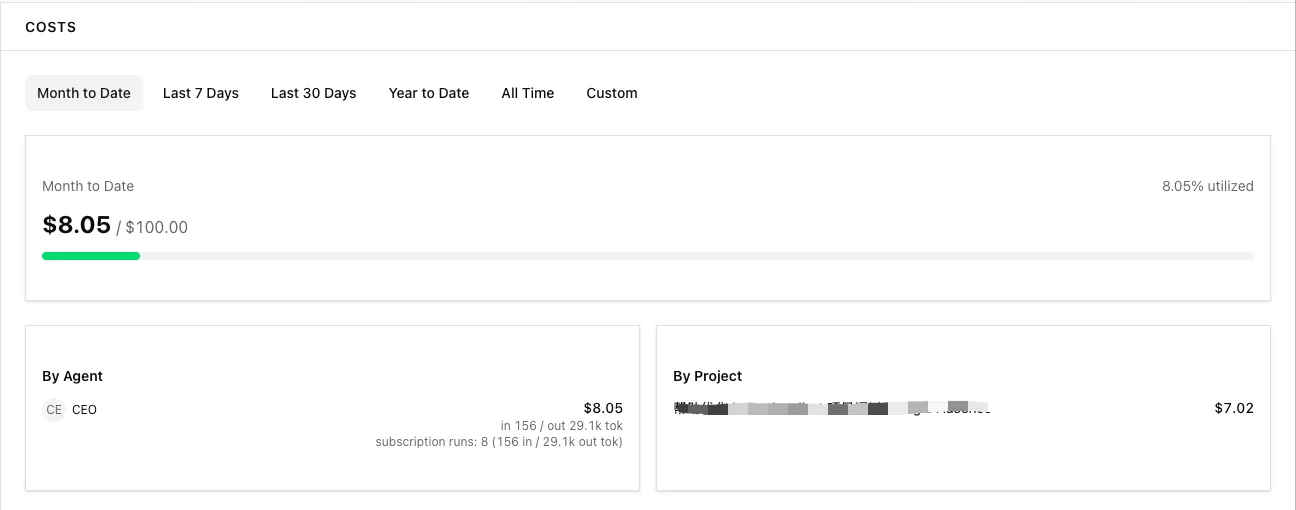
Paperclip AI lets you drill into spending breakdowns by Agent or by Project, so every dollar is accounted for.
2. Defense Lines: Budget Control & Runtime Safeguards
Budget Enforcement
Assign monthly budgets (budgetMonthlyCents, unit: cents) to each Agent based on their role:
- 80% Warning: When company-level budget utilization hits 80%, the Dashboard and Inbox display a yellow alert (e.g., “Budget at 85% utilization this month”) to get your attention.
- 100% Auto-Pause: When an individual Agent’s spending reaches or exceeds its budget cap, the system immediately sets its status to paused. It cannot run again until you increase its budget or the next calendar month rolls around.
Runtime Safeguards
Beyond budget caps, Paperclip provides per-run limits to prevent any single execution from spiraling out of control:
| Setting | Description |
|---|---|
timeoutSec | Maximum seconds a run can last before being force-killed (0 = no limit) |
graceSec | Seconds to wait after sending an interrupt before force-killing the process (default: 15s) |
maxTurnsPerRun | Maximum LLM conversation turns per run (default: 300) |
maxConcurrentRuns | Maximum simultaneous heartbeat runs for one Agent (default: 1) |
cooldownSec | Minimum seconds between consecutive heartbeat runs (default: 10s) |
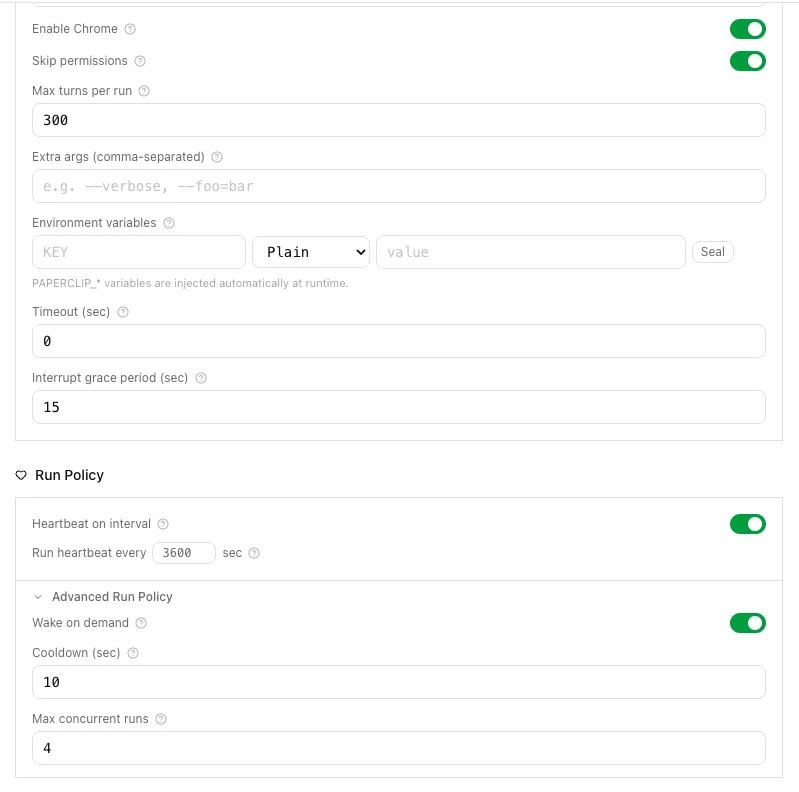
These settings can be configured on the Agent configuration page or via API. They serve as the first physical barrier against runaway execution — even if the budget hasn’t been exhausted, an abnormal run will be cut short by timeout or turn limits.
3. Hands-On: Configuring Budgets via API
⚠️ Note: As of 2026-03-13 (v0.3.1), the Budget configuration UI is not yet fully exposed in the frontend. The backend is fully functional — you’ll need to use the API to set budgets. The steps below walk you through the complete workflow.
Once a future version ships with UI support, this tutorial will be updated accordingly.
Suppose you’re running a software company, with Paperclip AI at http://localhost:3100.
Step 1: Get Your Company ID and Agent IDs
# List all companies
curl http://localhost:3100/api/companies
This returns all companies on your Paperclip AI instance:
[
  {
    "id": "b1b65a40-a43a-4bec-bbcb-c9a2e9615cd3",
    "name": "greedisgood",
    "description": null,
    "status": "active",
    "issuePrefix": "INF",
    "issueCounter": 2,
    "budgetMonthlyCents": 0,
    "spentMonthlyCents": 407,
    "requireBoardApprovalForNewAgents": true,
    "brandColor": null,
    "createdAt": "2026-03-13T07:05:32.253Z",
    "updatedAt": "2026-03-13T09:23:33.917Z"
  }
]
Here b1b65a40-a43a-4bec-bbcb-c9a2e9615cd3 is your Company ID (your actual values will differ).
# List all agents under a company
curl http://localhost:3100/api/companies/b1b65a40-a43a-4bec-bbcb-c9a2e9615cd3/agents
This returns all agents in that company:
[
  {
    "id": "4a29305c-69d6-49fd-a860-852becc851d0",
    "companyId": "b1b65a40-a43a-4bec-bbcb-c9a2e9615cd3",
    "name": "Elon",
    "role": "ceo",
    "title": "CEO",
    "icon": null,
    "status": "running",
    "reportsTo": null,
    "capabilities": "...",
    "adapterType": "claude_local",
    "adapterConfig": {
      "chrome": true,
      "graceSec": 15,
      "timeoutSec": 0,
      "maxTurnsPerRun": 300,
      "dangerouslySkipPermissions": true
    },
    "runtimeConfig": {
      "heartbeat": {
        "enabled": true,
        "cooldownSec": 60,
        "intervalSec": 3600,
        "wakeOnDemand": true,
        "maxConcurrentRuns": 4
      }
    },
    "budgetMonthlyCents": 0,
    "spentMonthlyCents": 548,
    "permissions": {
      "canCreateAgents": false
    },
    "lastHeartbeatAt": "2026-03-13T09:30:28.798Z",
    "metadata": null,
    "createdAt": "2026-03-13T07:05:44.142Z",
    "updatedAt": "2026-03-13T09:33:27.835Z",
    "urlKey": "ceo"
  }
]
Here 4a29305c-69d6-49fd-a860-852becc851d0 is the Agent ID.
Step 2: Set a Monthly Company Budget
# Set company monthly budget to $100 (unit is cents, so 10000 = $100)
curl -X PATCH http://localhost:3100/api/companies/{companyId}/budgets \
  -H "Content-Type: application/json" \
  -d '{"budgetMonthlyCents": 10000}'
Step 3: Assign “Salaries” to Each Agent
# CEO: $60/month budget
curl -X PATCH http://localhost:3100/api/agents/{ceoAgentId} \
  -H "Content-Type: application/json" \
  -d '{"budgetMonthlyCents": 6000}'

# Junior Engineer: $30/month budget
curl -X PATCH http://localhost:3100/api/agents/{juniorAgentId} \
  -H "Content-Type: application/json" \
  -d '{"budgetMonthlyCents": 3000}'
💡
budgetMonthlyCentsis in cents. Setting it to0means unlimited budget.
Step 4: Review Cost Reports
# Company spend overview
curl http://localhost:3100/api/companies/{companyId}/costs/summary

# Breakdown by agent
curl http://localhost:3100/api/companies/{companyId}/costs/by-agent

# Breakdown by project
curl http://localhost:3100/api/companies/{companyId}/costs/by-project
You can also click Costs in the sidebar for a visual report:
Step 5: Decision Time
When an Agent triggers the 80% utilization threshold, you’ll see a warning in your Inbox:

-
Increase Budget & Resume: Check the progress — if a bug fix is nearly done, bump the budget via API and the Agent resumes automatically.
# Example: raise the Junior Engineer's budget from $30 to $40
curl -X PATCH http://localhost:3100/api/agents/{juniorAgentId} \
  -H "Content-Type: application/json" \
  -d '{"budgetMonthlyCents": 4000}'
🔑 Key Takeaways
Paperclip’s budget system means you no longer need to watch API billing with dread. Budget caps rein in total spending; runtime limits catch runaway executions.
In this system, AI does the work — and you do what a boss does best: read reports and make decisions.
Today’s Task ✅
- Use the API to set the first “salary” (
budgetMonthlyCents) for your company and agents. - Visit the Costs page to review current spending.
- Try setting a very low budget for an Agent (e.g., 100 cents = $1) and watch it trigger auto-pause.
Coming Up: Day 5 — Your AI Company’s First Real Delivery
Finances are locked down. Time to stop talking and start shipping. Tomorrow, your company delivers its first real product — a landing page, built end-to-end by your AI team. See you on the factory floor.
Budget caps rein in total spending; runtime limits catch runaway executions.
Sleep soundly tonight.